

Brand new user? 👉 Watch the Kobbr introduction demo
This guide has been specially created for those of you who have just gained access to the platform or become a Kobbr customer. No prior knowledge is required , just a bit of time and the willingness to build a system that lasts.
To get started, you can log in to Kobbr. This article is also available as a video, which you can watch here.
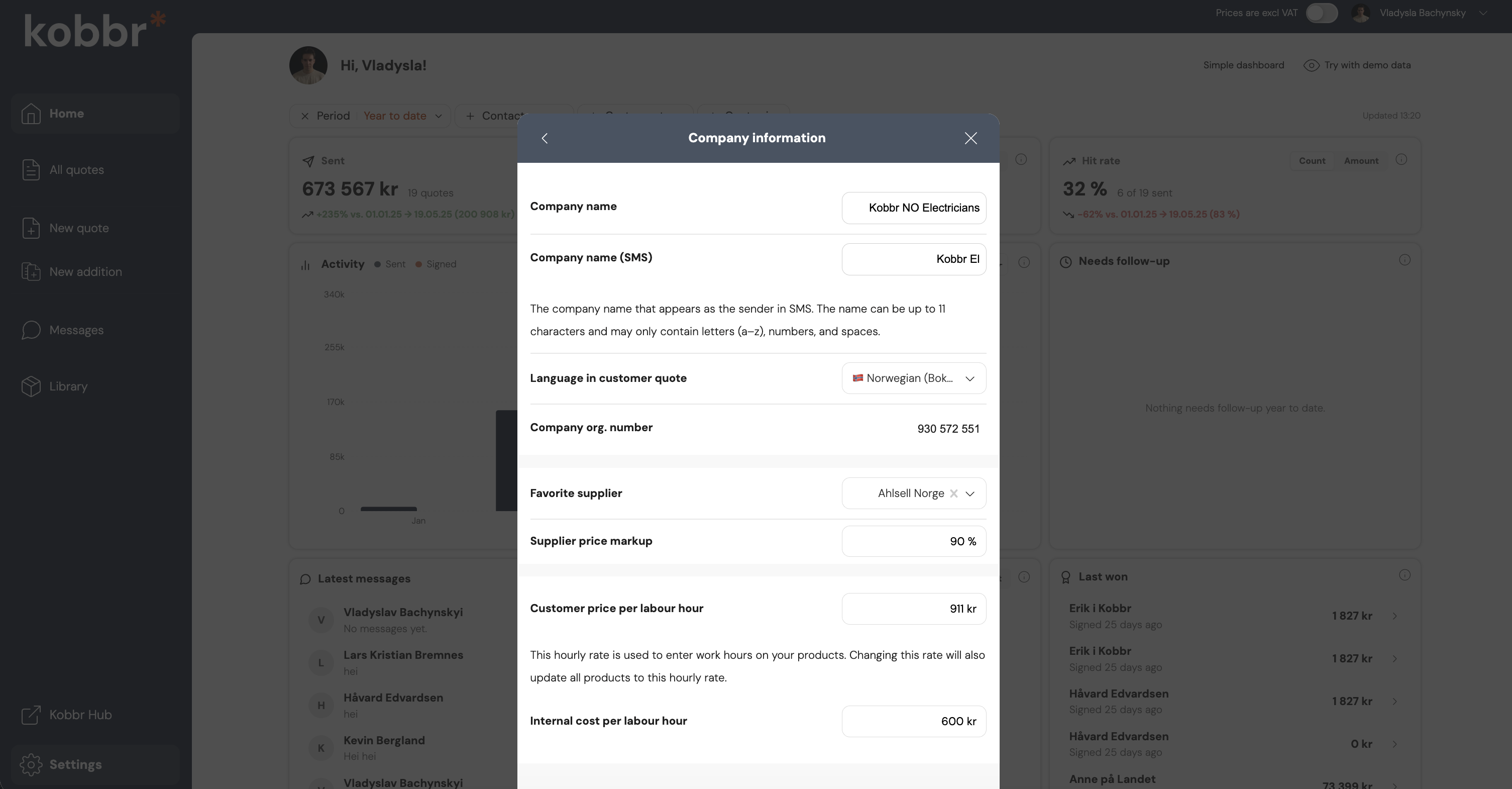
Go to Settings → Company Information and do the following:
Under Settings → Default Quote Settings, you can specify what should automatically apply to all new quotes. This will save you a great deal of manual work going forward.
Here you can, amongst other things:
💡 Tip: Enter your disclaimers here once, and your engineers, plumbers, and carpenters won't have to think about it when they're out in the field.

Under "Chat and Messages" you can customise how you communicate with your customers:

Please skip to Step 5 if you do not use price files from a supplier.
Under "Suppliers and Price Files" you can import updated prices in two ways:
Method 1: FTP Server
Large suppliers and wholesalers have an FTP server where price files are updated on an ongoing basis. Kobbr can connect to this and keep your prices updated automatically. You will need:
Enter these details and Kobbr will retrieve your prices and keep them up to date going forward.
💡 Tip: You can contact the relevant supplier directly, or get help from your Kobbr account manager to get your FTP prices set up. Feel free to get in touch with us via the form here.
Method 2: Send the Price File Directly
Many suppliers offer a simple price file (Excel/CSV). Send it to your Kobbr account manager or to Kobbr directly, and it will be added on your behalf. No problem at all.

Under "Users and Roles" you can add everyone in the company who will be using Kobbr, whether to create quotes or simply to monitor the status of jobs.
💡 Tip for juniors and apprentices: Set the role so that quotes are not sent directly to the customer, but instead go through "internal review" first. This allows a more experienced team member to read through and approve the quote on behalf of the employee — a safe and reassuring way to get younger colleagues up and running.

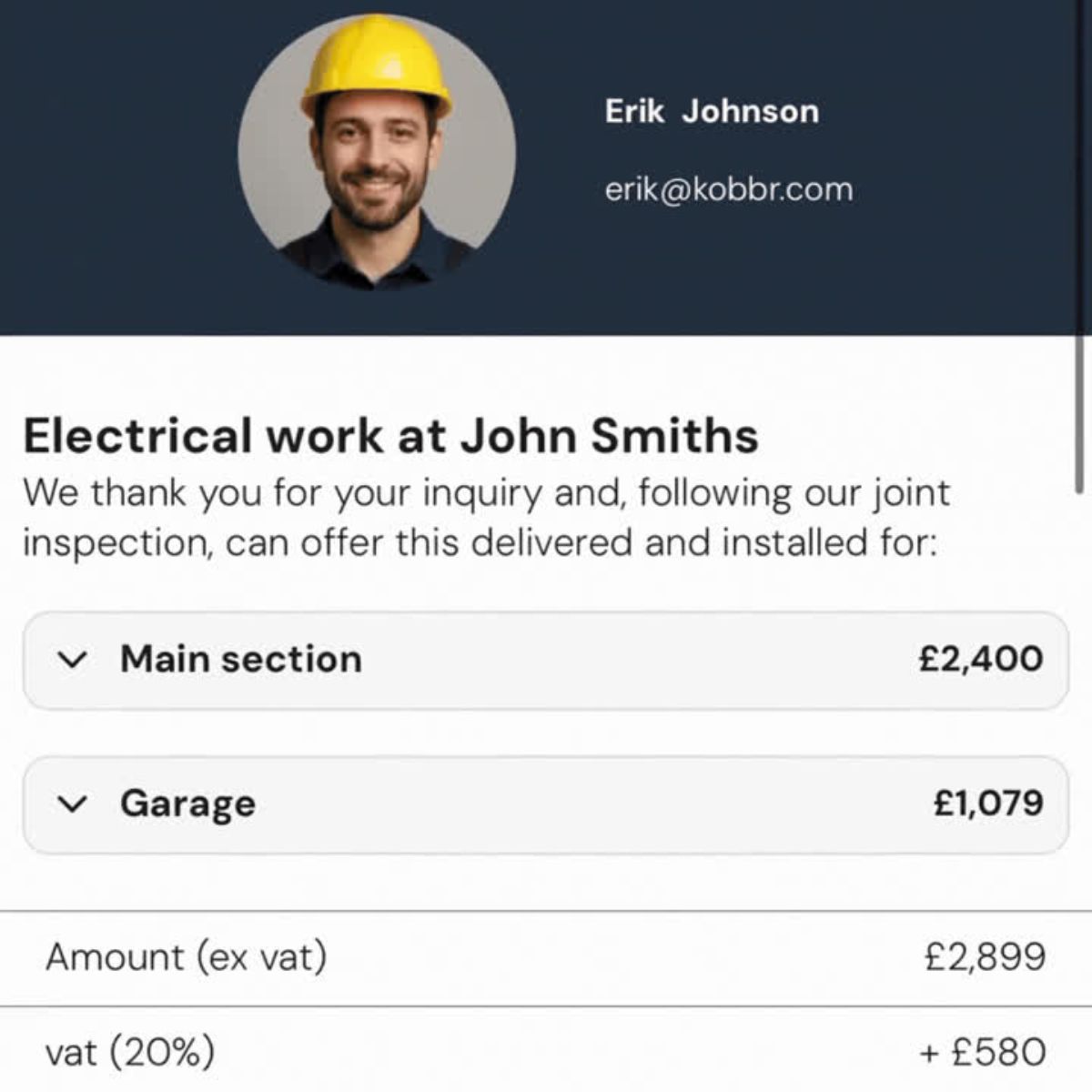
Open a quote and see how it looks from the customer's perspective. Here you can customise:
Get in touch with the Kobbr team and they will help you swap out images and tailor the design so that you come across as professionally as possible to your customers.
The final step is to set up your library, which is the heart of Kobbr and makes it incredibly easy for your colleagues to put together quotes quickly.
Make sure you have:
As for packages, think of these as ready-made quote templates for different rooms or job types. When an engineer is out at a customer's premises, they can simply select a package and customise it rather than starting from scratch.
💡 Tip: If you are the person responsible for Kobbr internally, take some time to build the library up properly. It will make the day-to-day work of all your colleagues considerably easier.


Ready to get started? Log in to Kobbr. And as always, you'll find plenty of useful videos on our YouTube channel and in the Kobbr Hub.
Need help? Contact us.
Good luck with Kobbr! 🚀
.png)